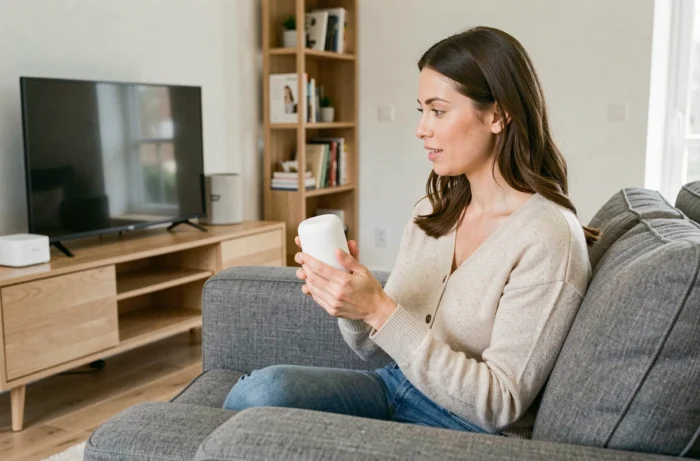
We connect the Freebox Pop, turn on the Player, and the first thing the screen asks is to log in with a Google account. The natural reflex would be to configure everything using the remote control, button by button. The voice command “Ok Google” significantly shortens this step, provided you know exactly where to press and in what order to link the services.
Player Pop under Google TV: what it changes for voice control
The Player Pop delivered with the Freebox Pop is not just a simple Android TV box. It runs on Google TV with integrated Chromecast, Google’s overlay that centralizes recommendations, applications, and user profiles. The difference is immediately visible during setup: the voice assistant is accessible from the dedicated button on the remote control, without going through a third-party app.
In practical terms, Google TV manages the link between the Google account, the Google Home app on the phone, and the Player Pop. When you say “Ok Google” in front of the remote control, the request goes through this same ecosystem. A detailed guide explains how to use Ok Google to set up my Freebox Pop device based on this Google TV architecture, which simplifies the process compared to older boxes running classic Android TV.
The integrated Chromecast also allows you to cast content from a phone or tablet to the television, directly via a voice command. You say “Ok Google, cast this video to the living room,” and the Player Pop takes over without any additional manipulation.
Linking Google Home and Freebox Pop: the procedure that really works
The majority of tutorials list the steps without specifying the blocking points. Here’s the complete sequence, with details that prevent having to restart three times.
Network and account prerequisites
Before opening Google Home, we check two things. The phone and the Player Pop must be connected to the same Wi-Fi network. If the Freebox Pop broadcasts two networks (2.4 GHz and 5 GHz), both devices must be on the same band; otherwise, Google Home will not detect the Player.
The Google account used on the phone must be the same as the one configured on the Player Pop. If in doubt, check in the Player settings under “Accounts and connection.”
Steps in Google Home
- Open the Google Home app on the phone, then tap the “+” at the top left to add a device.
- Select “Set up a device,” then “New device.” The app scans the network and offers the Player Pop if it is on and connected.
- Follow the on-screen instructions: a code appears simultaneously on the television and on the phone to confirm the pairing.
- Assign a room to the Player (living room, bedroom, office) so that voice commands target the correct device if you have multiple connected speakers or screens.
Once the pairing is complete, the Player Pop appears in the list of Google Home devices. You can then control the television by voice from any Google speaker connected to the same account.
Useful voice commands on Freebox Pop in daily life
Setting up the assistant is pointless if you don’t know what to ask it next. Some commands work natively, while others require that applications be installed on the Player.
The basic commands cover television control:
- “Ok Google, turn on the living room TV” or “turn off the TV” for power control via HDMI-CEC (the television must support this function).
- “Ok Google, set the volume to 50” or “raise the volume” to adjust the volume without searching for the remote control.
- “Ok Google, open Netflix” or “launch YouTube” to start an application directly.
- “Ok Google, search for action movies” to browse the Google TV catalog without typing on the keyboard.
HDMI-CEC control must be enabled in the television settings for the power on and off commands to work. On some TV models, this option goes by a different name (Anynet+ on Samsung, Bravia Sync on Sony). Feedback on this point varies by TV brand, and sometimes the function can disable after a TV firmware update.
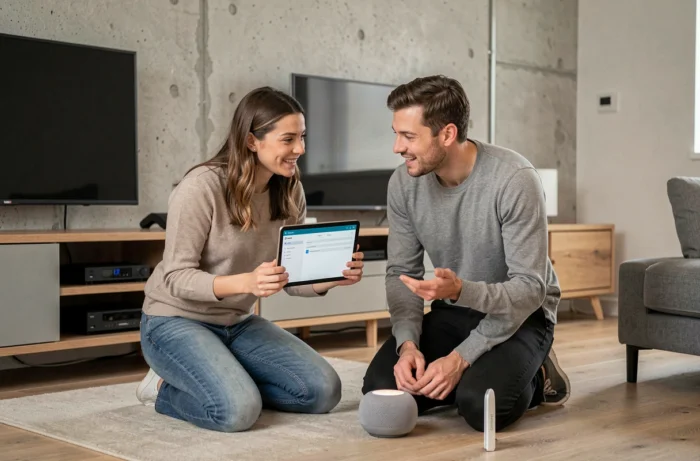
Detection issues with Player Pop in Google Home
The most common case: Google Home cannot find the Player during the network scan. Before resetting everything, check these points in order.
First, restart the Player Pop and the Freebox router. A simple power restart (unplugging, waiting about thirty seconds, plugging back in) resolves most detection issues related to network cache.
Next, check that the Player is not already associated with another Google account. If someone has set up the box with a different account, a factory reset must first be performed from the Player settings, under “System,” then “Reset.”
Last often overlooked point: the Google Home app must be up to date on the phone. An outdated version may not recognize recent devices running Google TV. Check the version in the Play Store or App Store and force an update if necessary.
If the Player remains invisible despite everything, temporarily connecting the phone and the Player via Ethernet (using a USB-C adapter for the phone) allows you to isolate a Wi-Fi problem. When detection works via wired but not wireless, the issue lies with the network and not with the Google pairing.
The Freebox Pop with its Player under Google TV transforms the television into a voice entry point for the entire connected home. Pairing with Google Home takes a few minutes when the Wi-Fi network and accounts are aligned. The most useful thing is to correctly name each device by room right from the setup, so that voice commands work unambiguously in daily life.